
Introduction to AWS Identity and Access Management (IAM)
Overview
In this lab, I explored how AWS Identity and Access Management (IAM) governs who can access specific AWS services and what actions they are allowed to perform. The lab walked through managing user identities, assigning permissions, and testing how IAM policies enforce least privilege across services like EC2 and S3.
Objectives
- Understand how IAM organizes users, groups, and policies
- Assign permissions according to a user’s job role
- Test how policies affect service access
- Observe the difference between managed and inline policies
What is AWS IAM
AWS Identity and Access Management (IAM) is the core service that controls authentication and authorization within the AWS cloud. It allows you to create and manage users, assign them to groups, and apply permission policies that dictate what actions can be performed on AWS resources.
In short, IAM answers three key questions:
- Who can access AWS resources
- What actions they can perform
- Which resources they can perform those actions on
Exploring Users and Groups
IAM uses a hierarchy that keeps access management organized. In this lab, I examined several pre-created users and groups representing different roles within a small organization.
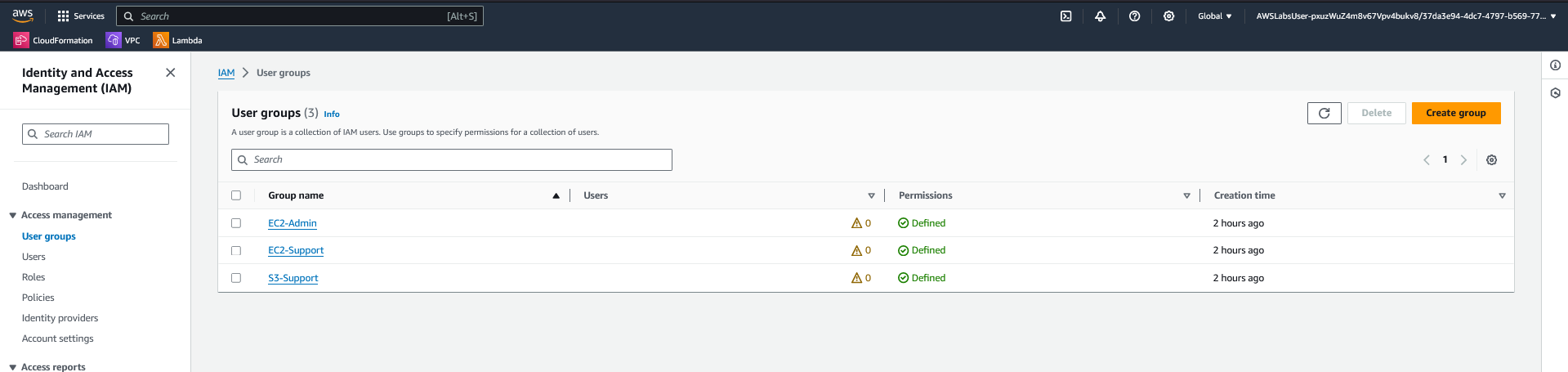
Each user had no permissions until added to a group. Groups, on the other hand, held the actual policies defining access levels. This structure showed how permissions can be managed collectively rather than individually.
Screenshot suggestion:
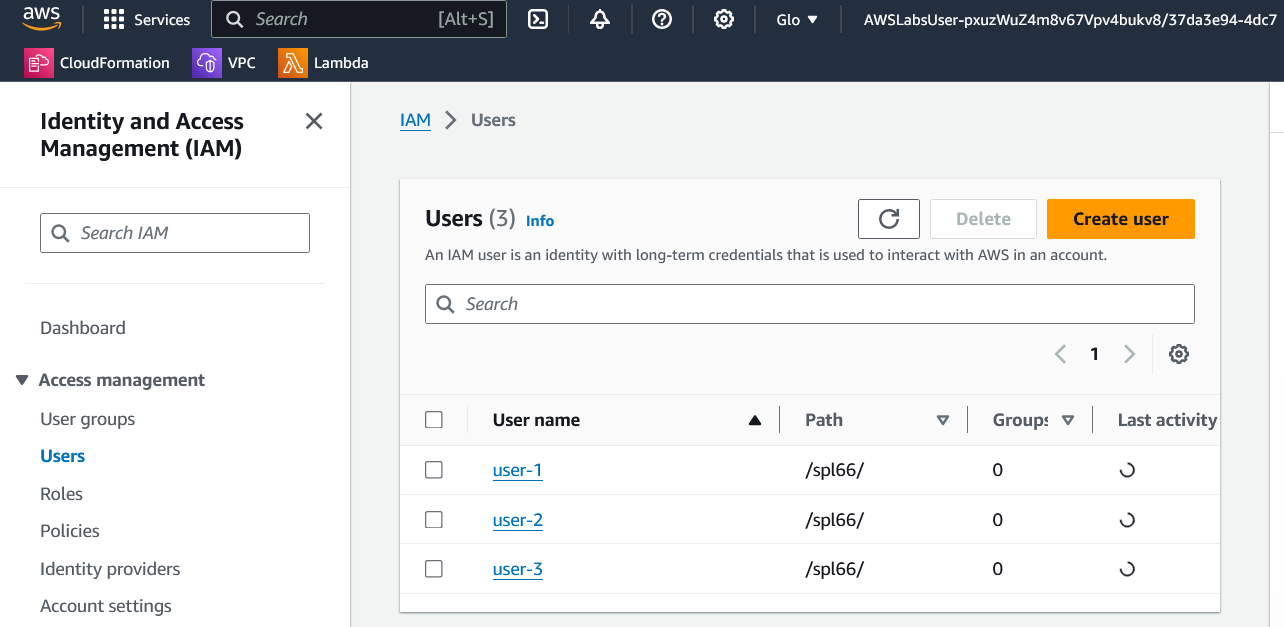
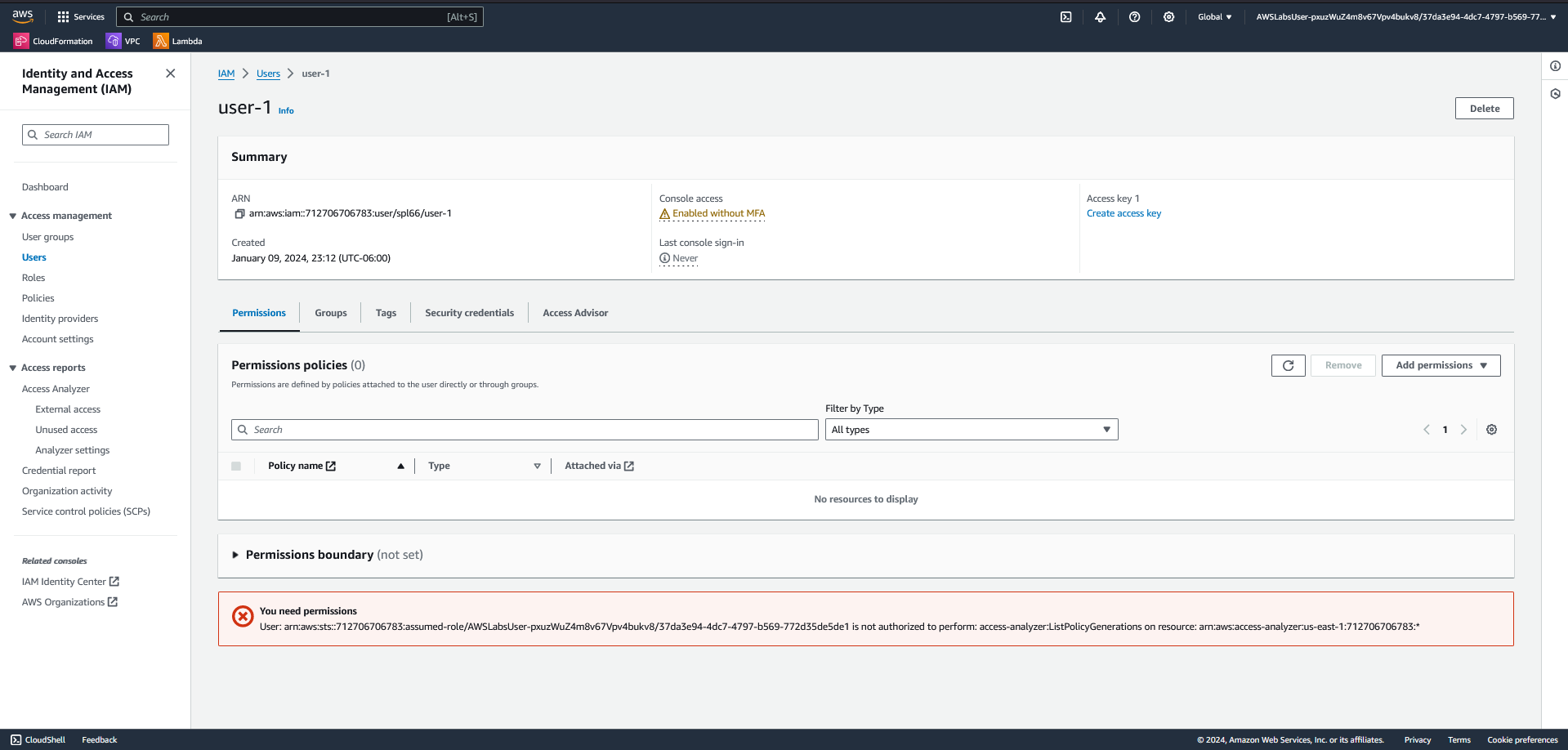
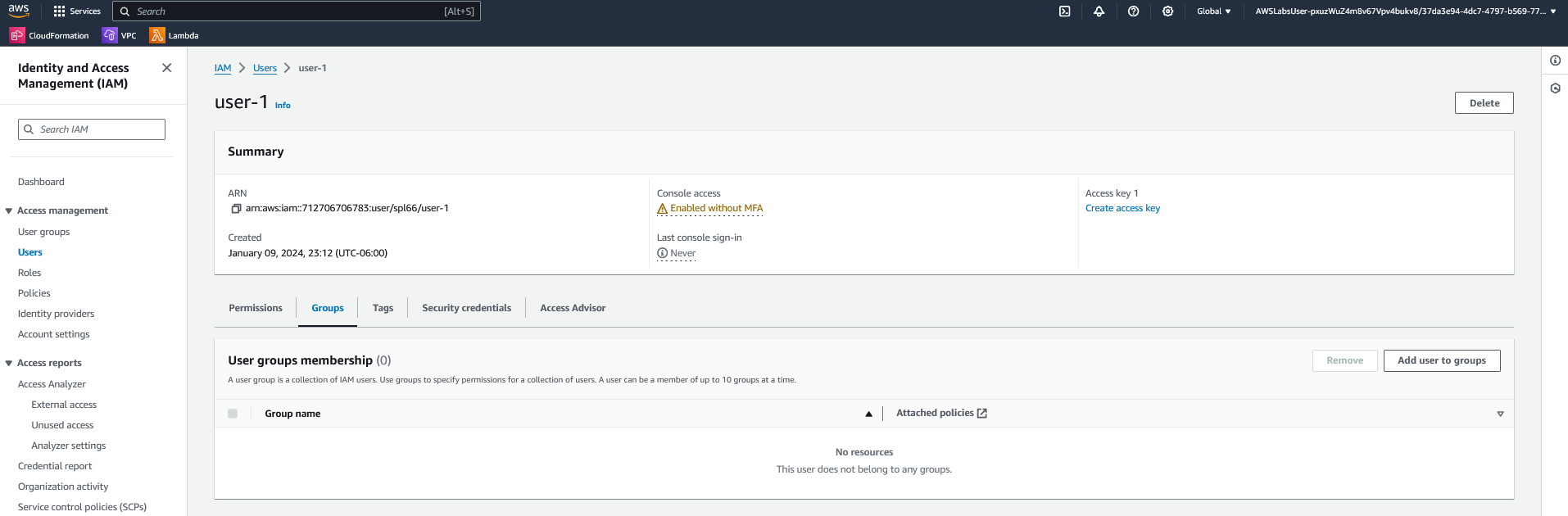
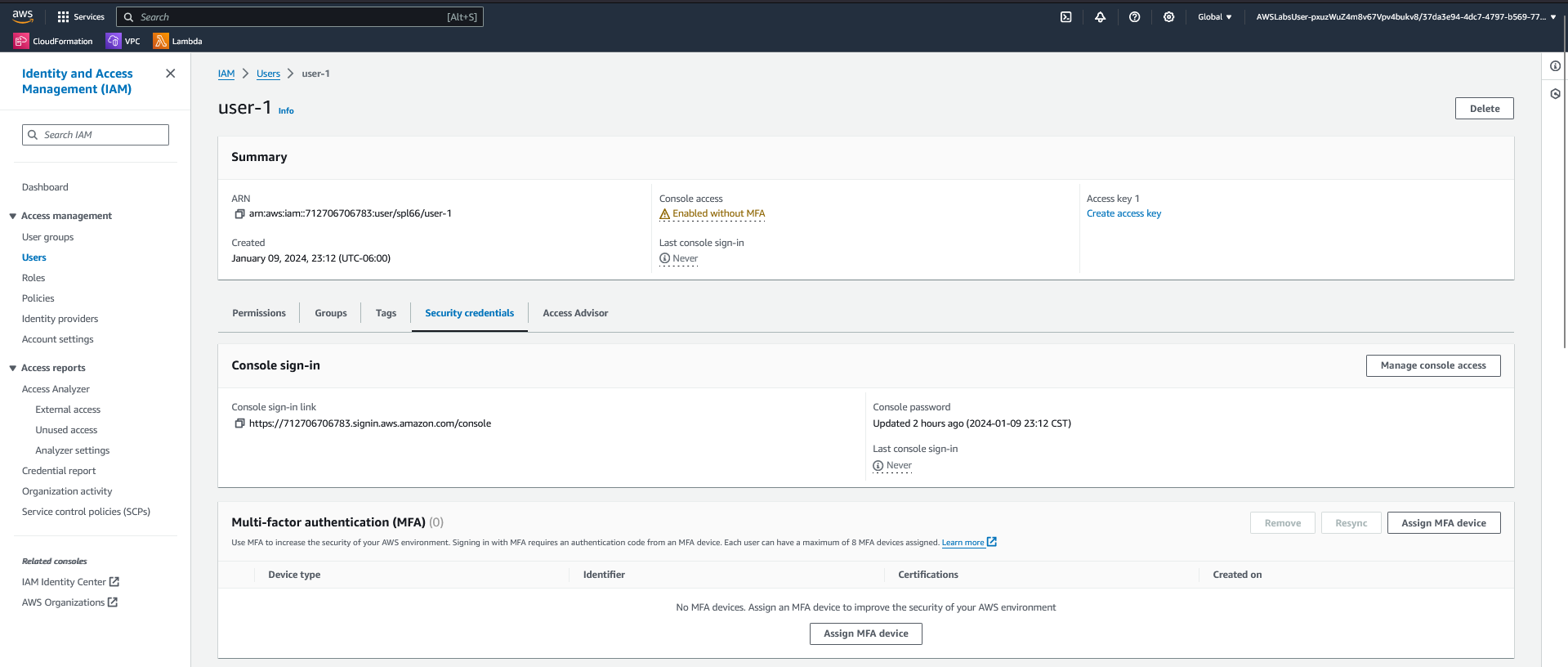
- IAM Console view of Users list showing user-1, user-2, and user-3.
- IAM Console view of User Groups showing EC2-Admin, EC2-Support, and S3-Support.
Optional screen recording:
- Short clip demonstrating navigation between the Users and Groups pages in the IAM console.
Understanding Policies
Policies in IAM are JSON-based documents that define permissions. They include three main elements:
- Effect – Allow or Deny
- Action – The AWS API calls that are permitted
- Resource – The specific resources those actions apply to
By reviewing attached policies, I saw the difference between AWS managed policies, which are maintained by AWS and can be reused across environments, and inline policies, which are unique to a specific user or group.
Screenshot suggestion:
- Open AmazonEC2ReadOnlyAccess managed policy, showing its summary and permissions tab.
- Example of the JSON tab displaying policy structure.
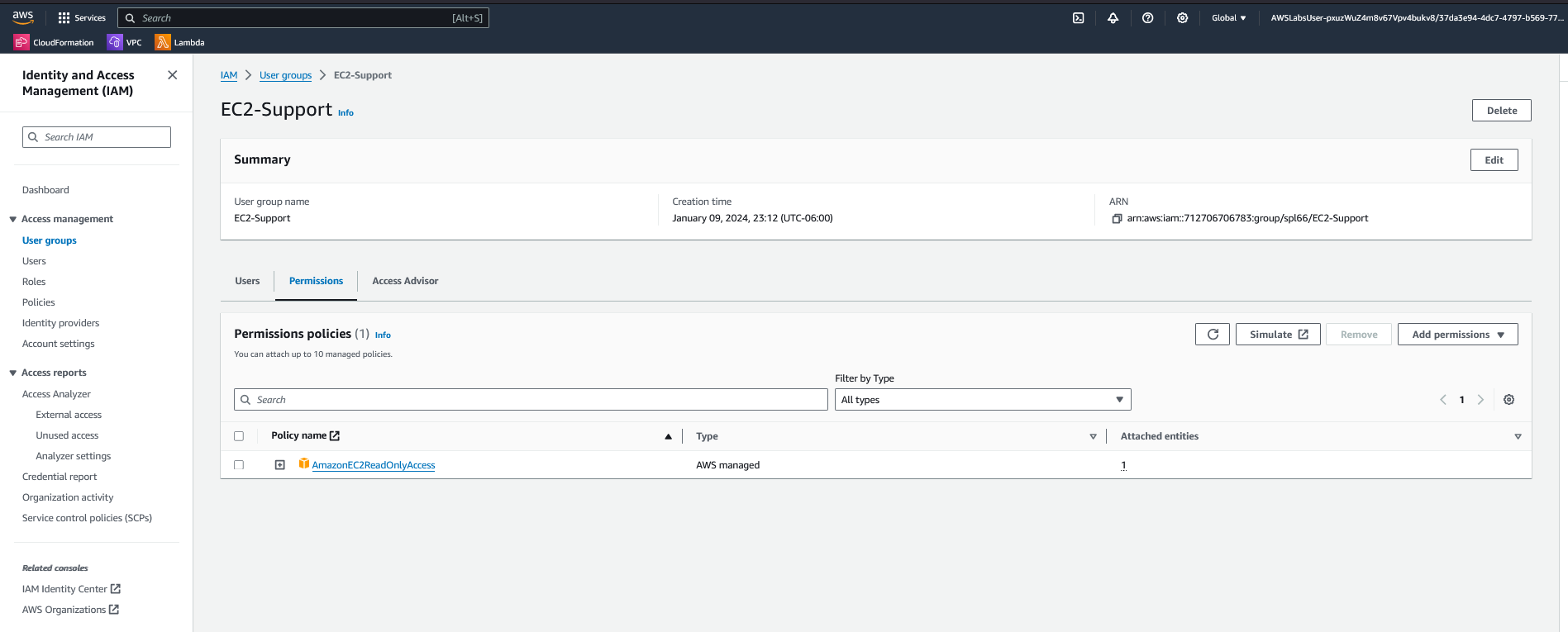
AmazonEC2ReadOnlyAccess, granting visibility into EC2 instances without modification rights.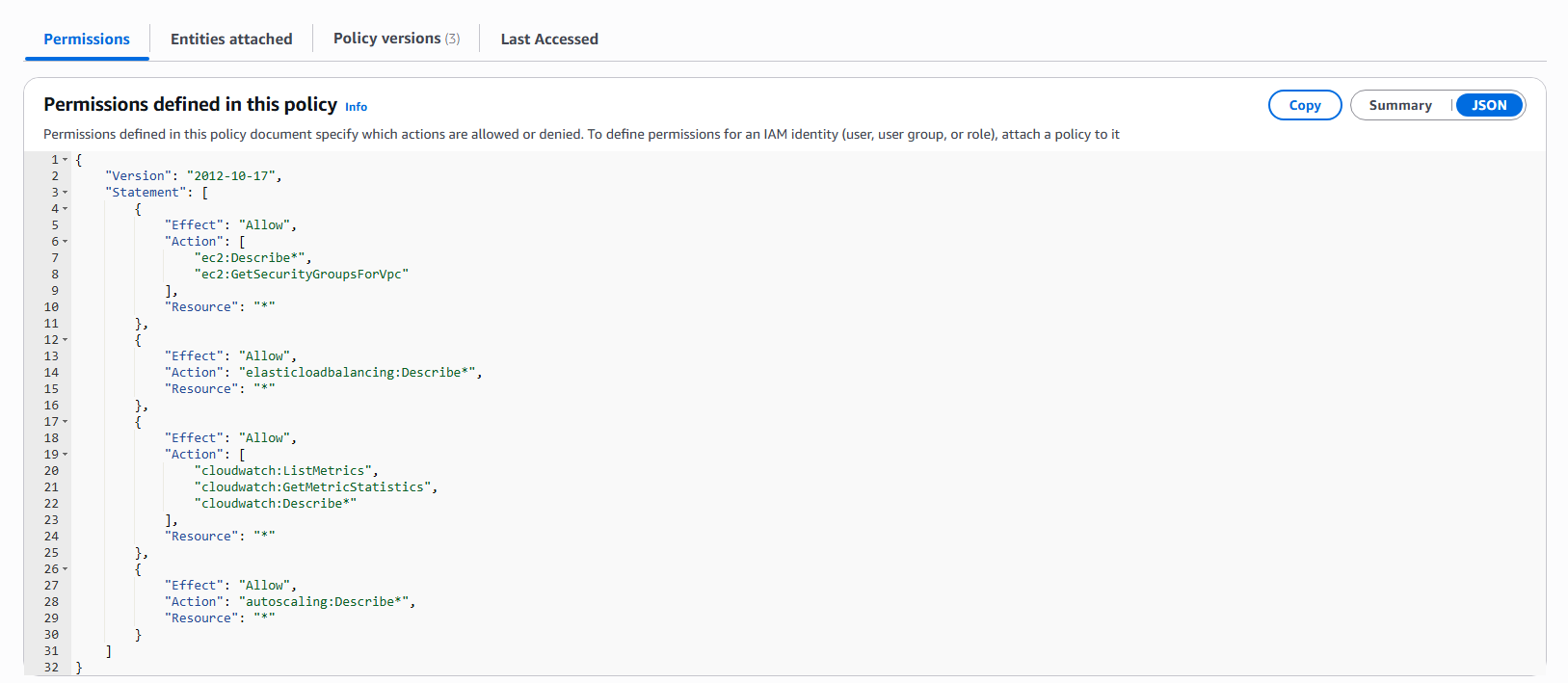
AmazonEC2ReadOnlyAccess. This managed policy allows Describe and List operations across EC2, Load Balancing, CloudWatch, and Auto Scaling services.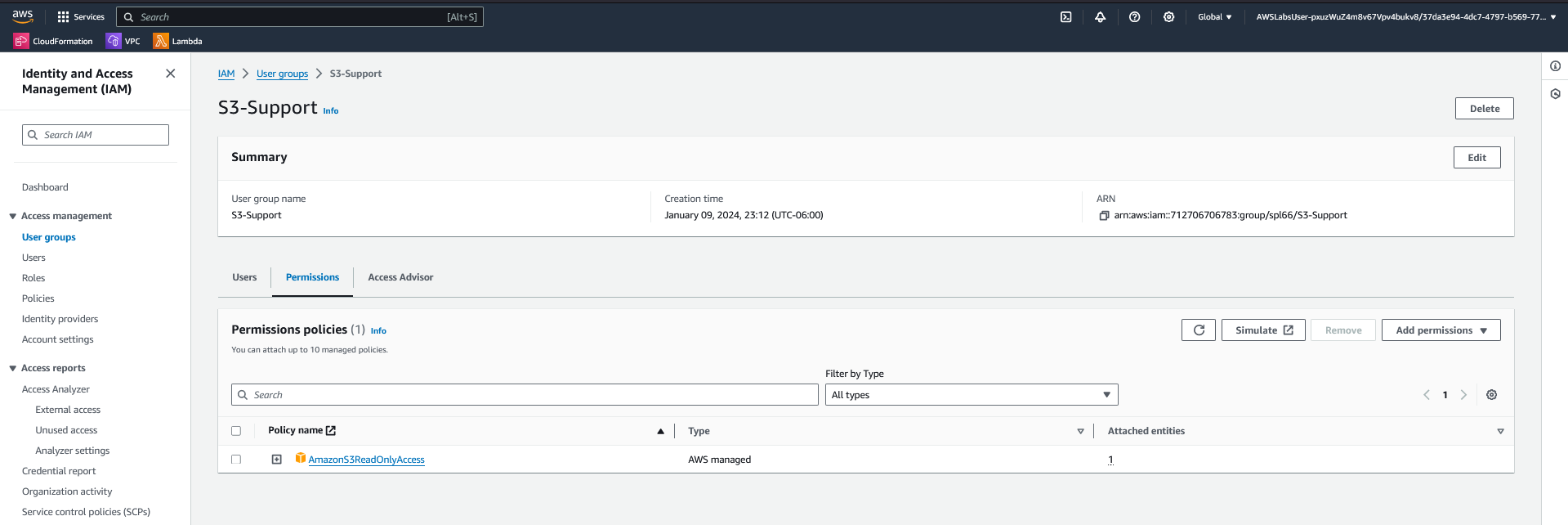
AmazonS3ReadOnlyAccess, providing view-only access to S3 bucket contents.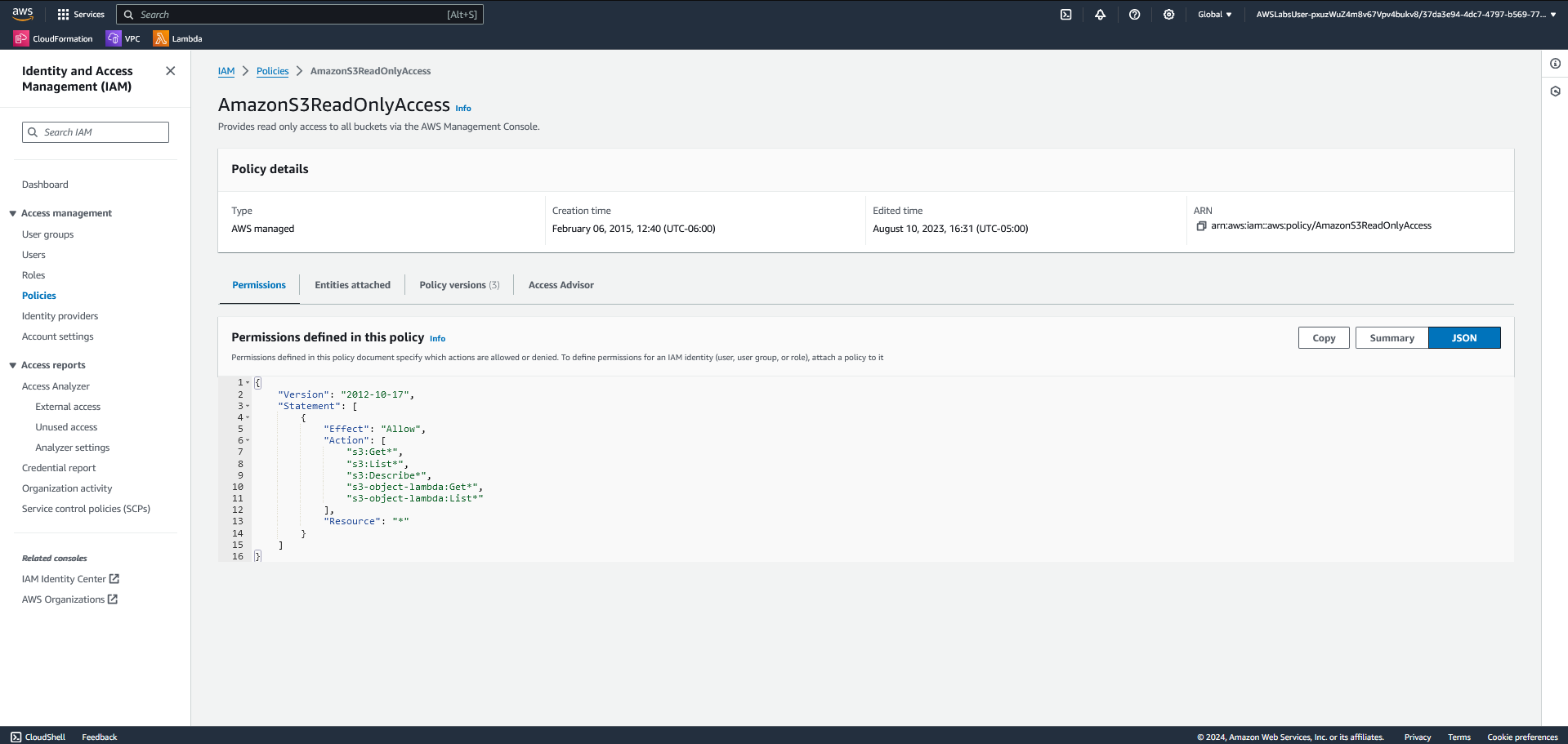
AmazonS3ReadOnlyAccess. The permissions include Get and List actions for all S3 buckets, ideal for support roles requiring non-destructive access.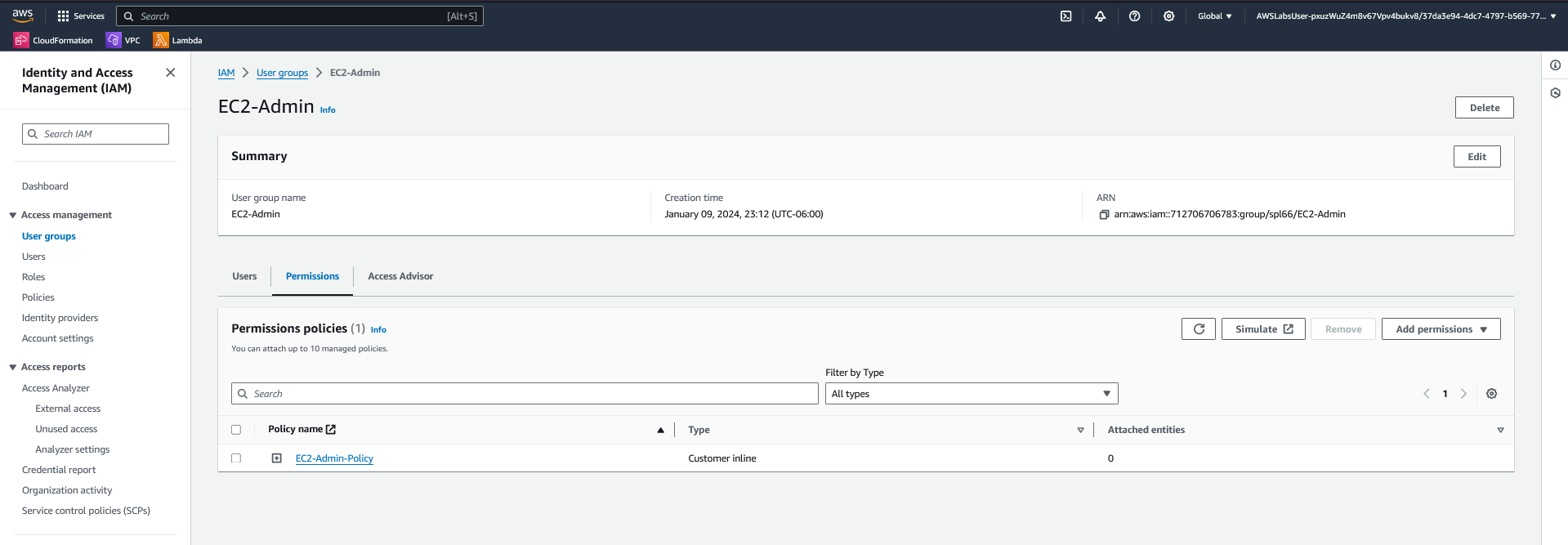
EC2-Admin-Policy rather than a managed policy. Inline policies are used for one-off or specialized permission sets.
Assigning Users to Groups
Following a simple organizational model:
- The S3 Support user needed read-only access to S3.
- The EC2 Support user required view-only access to EC2 instances.
- The EC2 Administrator needed the ability to start and stop EC2 instances.
After adding each user to the correct group, their permissions took effect immediately. This demonstrated how IAM’s group model simplifies access management and enforces consistent security boundaries.
Screenshot suggestion:
- “Add users to group” screen for one of the groups.
- Updated group summary showing one user assigned.
Optional screen recording:
- A brief clip showing how a user is added to a group and confirmed.
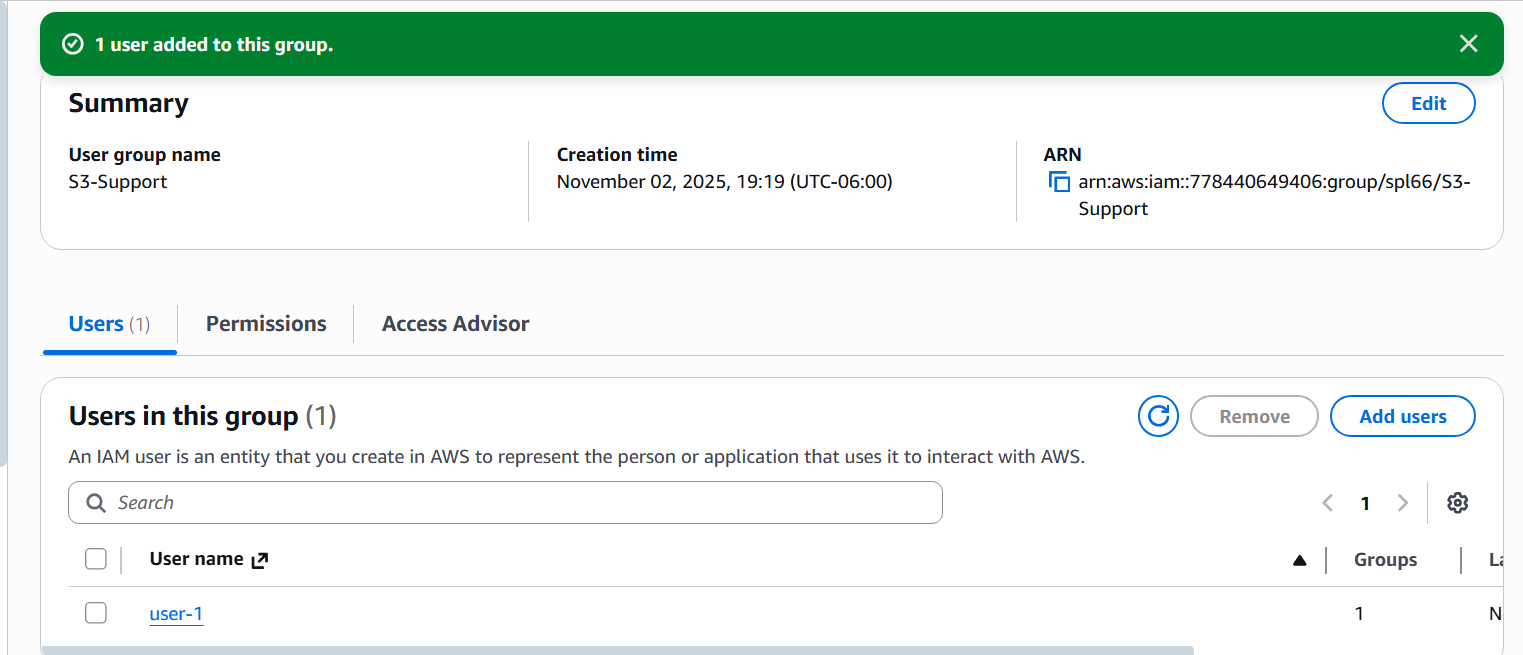
S3-Support group, inheriting read-only permissions to Amazon S3 through the attached AmazonS3ReadOnlyAccess policy.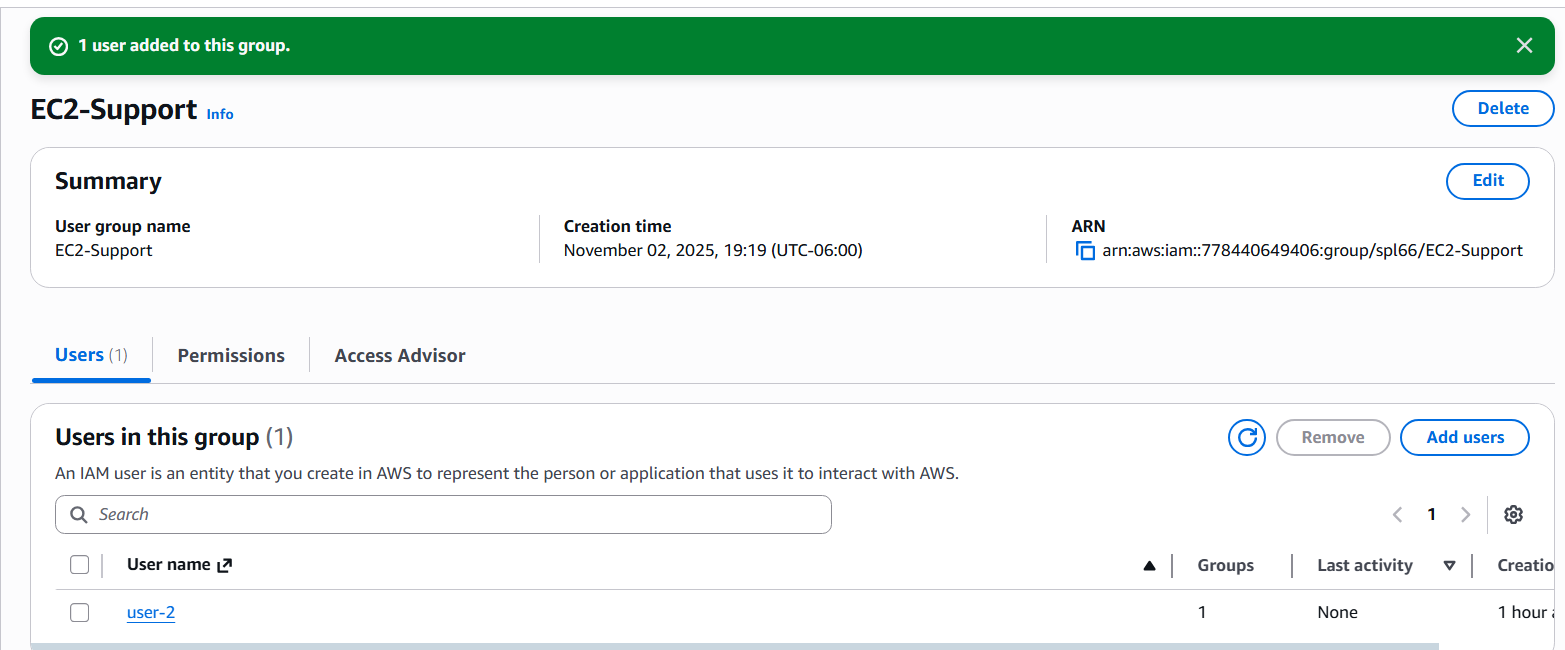
EC2-Support group, which provides view-only access to EC2 instances via the AmazonEC2ReadOnlyAccess managed policy.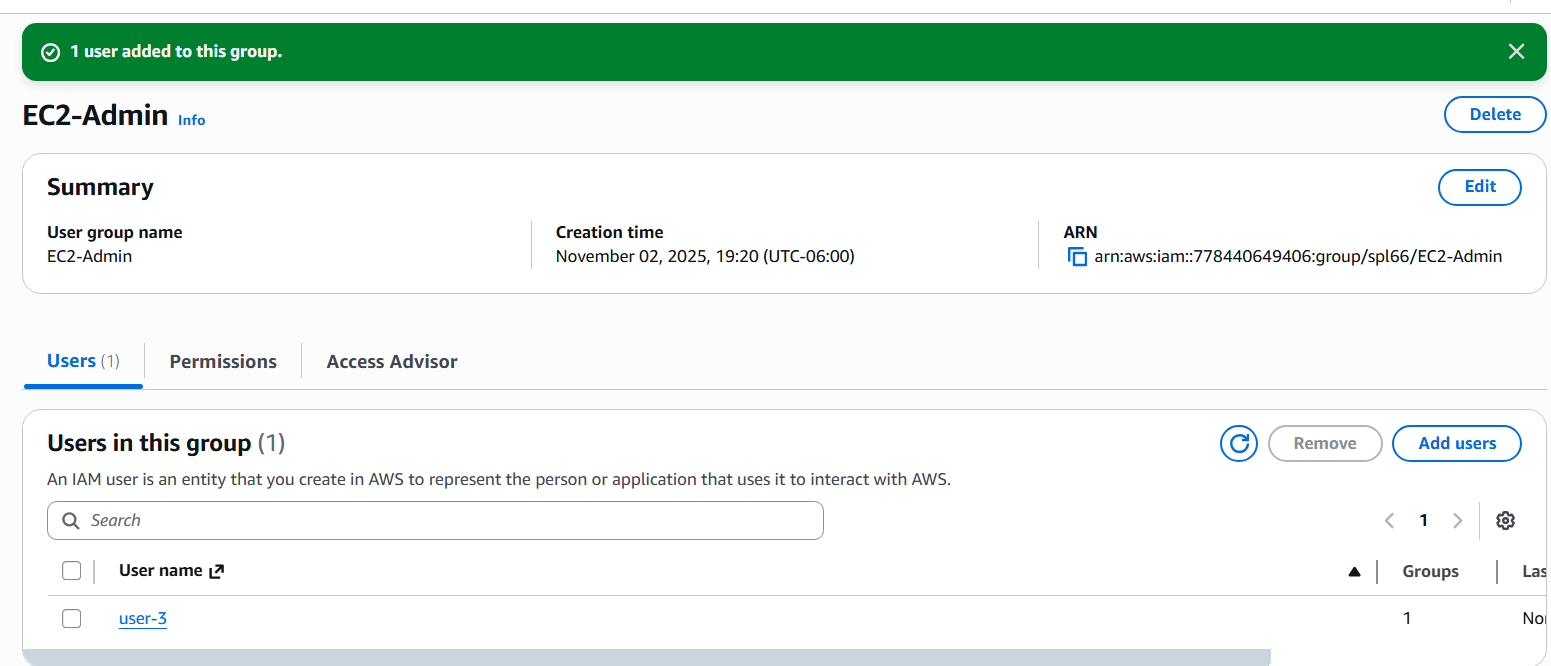
EC2-Admin group. Members of this group are granted permissions defined by the inline EC2-Admin-Policy, allowing them to start and stop EC2 instances.Testing Access Permissions
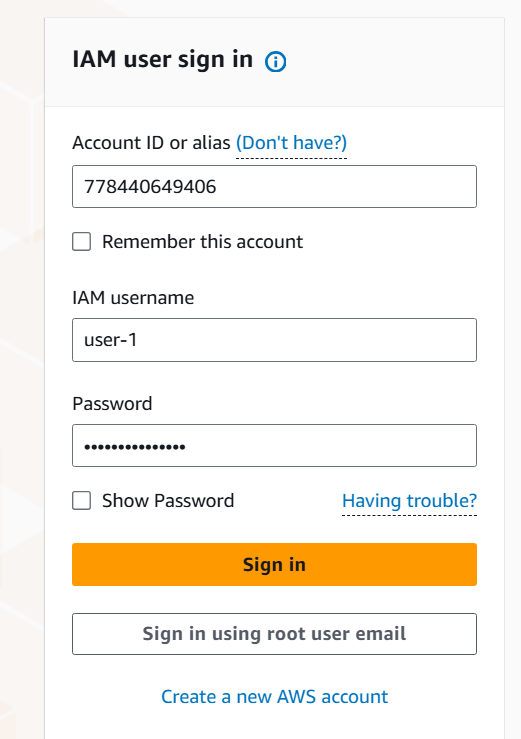
Next, I logged in using the IAM user credentials to test their access.
Each user account produced distinct outcomes that illustrated how policies enforce least privilege:
- User 1 (S3 Support) – Could view S3 buckets but received “Access Denied” when opening EC2.
- User 2 (EC2 Support) – Could list EC2 instances but not stop or modify them.
- User 3 (EC2 Admin) – Could start and stop EC2 instances as expected.
This verification step confirmed that IAM was correctly applying permissions as designed.
Screenshot suggestion:
- AWS Management Console as each user:
- S3 bucket list (for S3 Support)
- EC2 instances view with “Access Denied” prompt (for EC2 Support)
- EC2 instance “Stopping” state (for EC2 Admin)
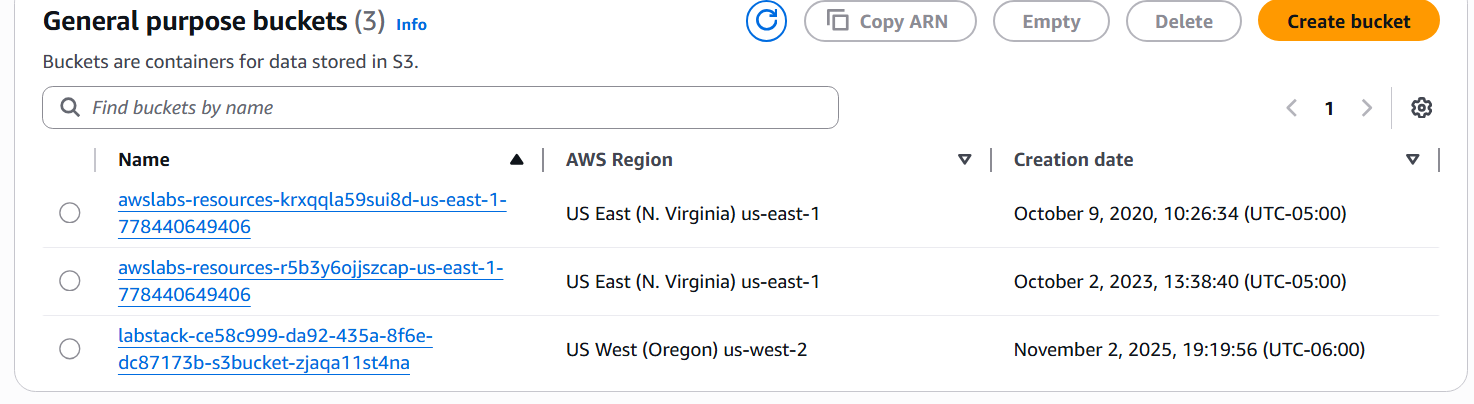
S3-Support group grants read-only S3 access.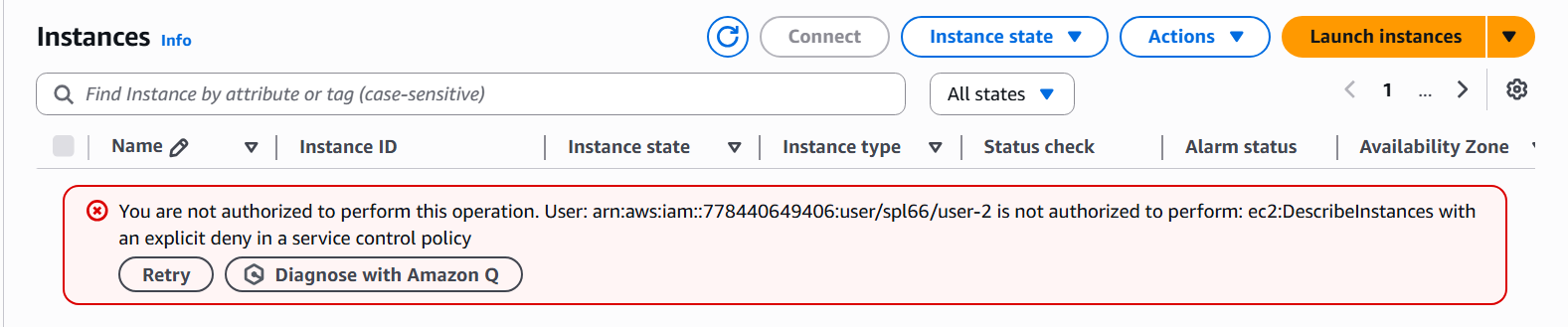
AmazonEC2ReadOnlyAccess policy is restricted by a higher-level control policy or region mismatch.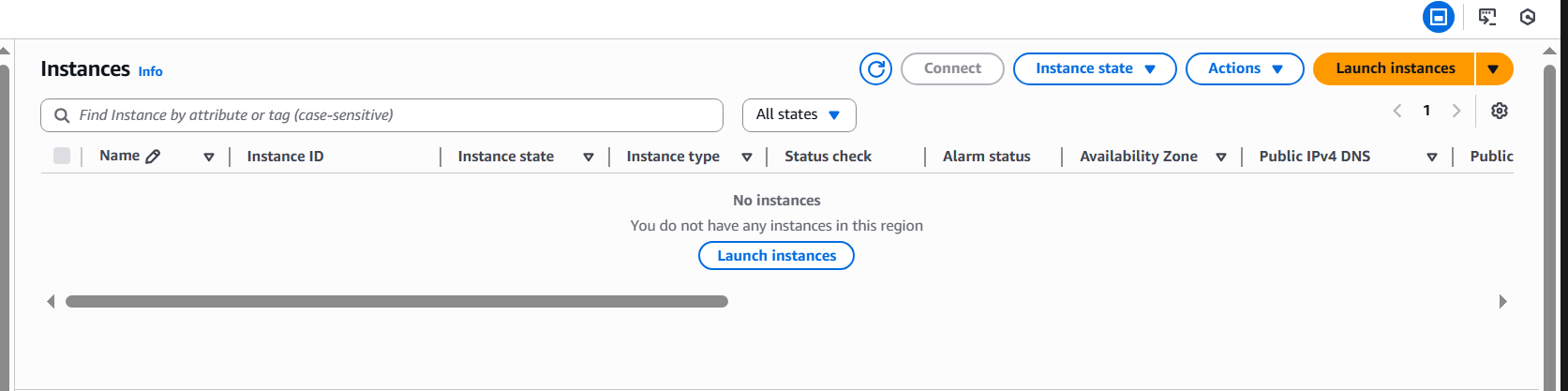
EC2-Admin group. As an administrator, this user can start or stop instances according to the inline policy definition.Optional screen recording:
- Short demonstration switching between IAM sign-ins to show policy impact.
Lessons Learned
- Group-based permissions simplify scaling. Instead of editing each user, assign them to the right group.
- Managed policies save time. AWS updates them automatically to reflect new service actions.
- Always test IAM roles and permissions. Assumptions can lead to overly permissive access.
- Adopt least privilege by default. Grant only what is necessary for a user’s job function.
Conclusion
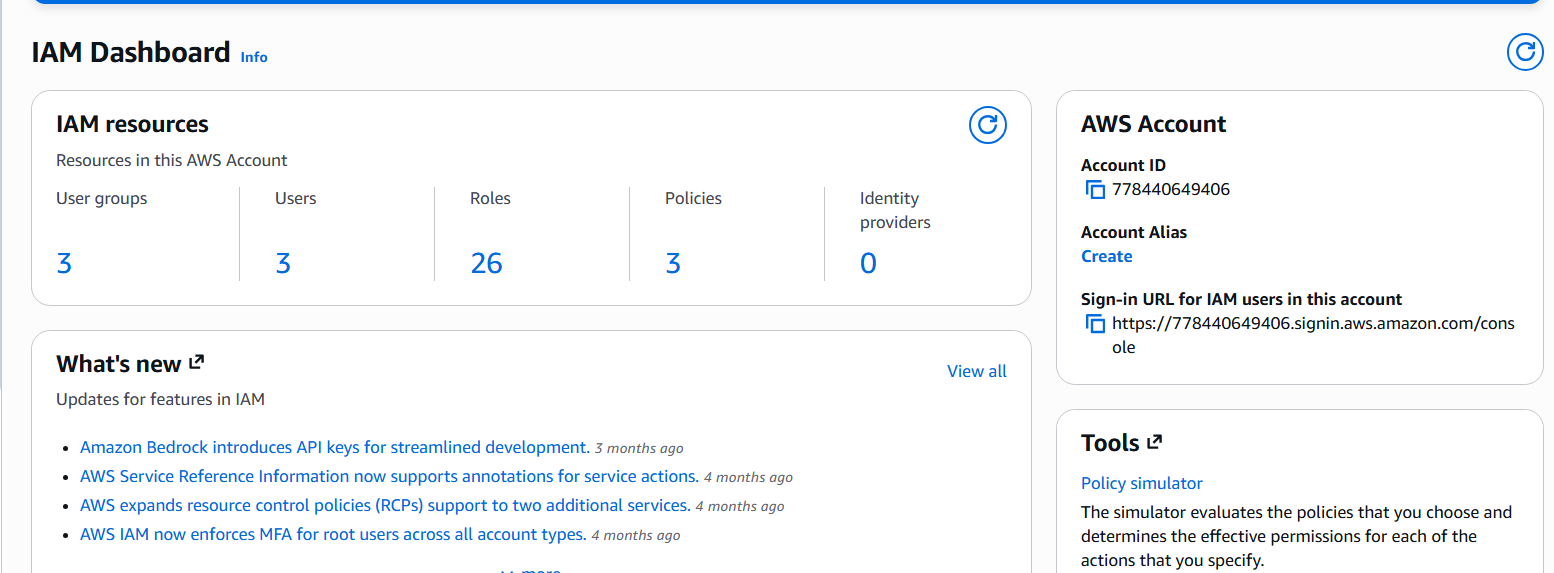
This lab reinforced the importance of IAM as the foundation of AWS security. By defining identities, grouping them logically, and attaching precise permission policies, organizations can ensure accountability and limit exposure. Learning how these pieces fit together provides a strong baseline for securing larger environments and preparing for more advanced topics such as identity federation, role-based access, and policy automation.
Screenshot suggestion (closing image):
- IAM Dashboard overview showing users, groups, and roles count summary — ideal as a closing graphic.